
HTML Web Page Structures
Web Page Elements
About WCAG Requirements (new window)
Web Content Accessibility Guidelines (WCAG) provides requirements for making websites, applications, and other digital content accessible to people with disabilities.
HTML Article Element
Article Element Example
The HTML5 <article> element represents a complete or self-contained composition in a web page. Examples of articles include an item at a shopping site or a news article on a news site.
<article id=n01 role=region aria-label=News1>
  <h4>Artificial Intelligence Exceeds Expectations</h4>
  <p>This is the body of the News1 Article.</p>
</article>
<article id=n02 role=region aria-label=News2>
  <h4>Intelligent Humans Hack Alien Cyber Code</h4>
  <p>This is the body of the News2 Article.</p>
</article>
Article Element Output
Use the Region key command to navigate by Region, the Heading key command to navigate by Headings, and the Paragraph key command to navigate by Paragraphs.
Artificial Intelligence Exceeds Expectations
This is the body of the News1 Article.


Intelligent Humans Hack Alien Cyber Code
This is the body of the News2 Article.
WCAG Relationships Resources
- WCAG Success Criterion 1.3.1: Information and Relationships (new window)
- Technique G115: Using semantic elements to mark up structure (new window)
- Technique G140: Separating information and structure from presentation to enable different presentations (new window)
HTML Heading Hierarchy
Heading Content Relationships
Use Headings for content structure, correctly. Headings communicate the organization of the content on the page. Web browsers, plug-ins, and assistive technologies can use Headings to provide in-page navigation relationships.
- Do not use text formatting, like large or bold text, to fake Headings.
- Use real HTML <h1> to <h6> Heading tags.
- Do not use Headings to achieve visual results only.
- Nest Headings by their rank (or level).
- The most important Heading has the rank one <h1>, and the least important Heading rank six <h6>.
- Headings with an equal or higher rank start a new section. Headings with a lower rank start new subsections that are part of the higher ranked section.
- Skipping Heading ranks can be confusing and should be avoided where possible. That is, make sure that a <h2> is not followed directly by an <h4>.
WCAG Heading Resources
- WCAG Success Criterion 1.3.1: Information and Relationships (new window)
- Technique H42: Using h1-h6 to identify headings (new window)
- PopeTech: 8 Common Heading Questions (new window)
- YouTube: Screen Reader Heading Navigation Demo (new window)
HTML Image Elements
How To Describe Pictures
Images must have text alternatives that describe the information or function represented by them. This ensures that images can be used by people with various disabilities. Appropriate text alternatives depend upon the purpose of the image.
- Informative images: Images that graphically represent concepts and information, typically pictures, photos, and illustrations. The text alternative should be at least a short description conveying the essential information presented by the image.
- Decorative images: Provide a null text alternative (alt=””) when the only purpose of an image is to add visual decoration to the page, rather than to convey information that is important to understanding the page.
- Functional images: The text alternative of an image used as a link or as a button should describe the functionality of the link or button rather than the visual image. Examples of such images are a printer icon to represent the print function or a button to submit a form.
- Images of text: Readable text is sometimes presented within an image. If the image is not a logo, avoid text in images. However, if images of text are used, the text alternative should contain the same words as in the image.
- Complex images: Such as graphs and diagrams: To convey data or detailed information, provide a full-text equivalent of the data or information provided in the image as the text alternative.
- Groups of images: If multiple images convey a single piece of information, the text alternative for one image should convey the information for the entire group.
- Image maps: The text alternative for an image that contains multiple clickable areas should provide an overall context for the set of links. Also, each individually clickable area should have alternative text that describes the purpose or destination of the link.
Using HTML Figures
- Figures are blocks with additional information set off from the main content of the page. Sometimes referenced from the main text.
- They typically contain Lists, Images, Tables, but can also include other content.
- For example, an annual report could reference to a diagram containing the sales volumes of a product.
- The longdesc attribute was intended to provide a reference to the long description page. The value of the
longdesc
attribute of theimg
element would contain the URL of the long description page, NOT the long description text itself. However,longdesc
attribute only works in some screen readers, and it is not part of HTML5. sighted users will not generally be aware that the description page is available, as no browser indicates the presence of thelongdesc
attribute visually, other than through the image context menus. In Firefox, long descriptions linked bylongdesc
are available throughView description
in the image’s context menu. There is an official Chrome Extension that adds long description access in a similar way. Safari has no support forlongdesc
. In other web browsers,longdesc
is currently available only to screen reader users. Mobile platforms currently do not supportlongdesc
. For these reasons, it is recommended thatlongdesc
should not be relied upon to provide access to this long description page.
HTML Figure Example
<p><figure role="group" aria-labelledby="fig-capt">
  <figcaption id="fig-capt">Statistics Canada Poll</figcaption>
  <img src="https://www150.statcan.gc.ca/n1/edu/power-pouvoir/ch9/img/5214826_01-eng.jpg" title="Figure 1. Student and faculty response to the poll 'Should Avenue High School adopt student uniforms?'" longdesc="longdesc1-StatsCan.shtml#main" alt="Figure 1. Student and faculty response to the poll 'Should Avenue High School adopt student uniforms?'." height=150 width=213 onmouseover=true>
The circle graph/pie chart above clearly shows that 90% of all students and faculty members at Avenue High School do not want to have a uniform dress code and that only 10% of the school population would like to adopt school uniforms. This point is clearly emphasized by its visual separation from the rest of the pie.<br>
<a target=_blank href="https://www150.statcan.gc.ca/n1/edu/power-pouvoir/ch9/pie-secteurs/5214826-eng.htm">Statistics Canada (new window)</a></p>
</figure>
Example Output
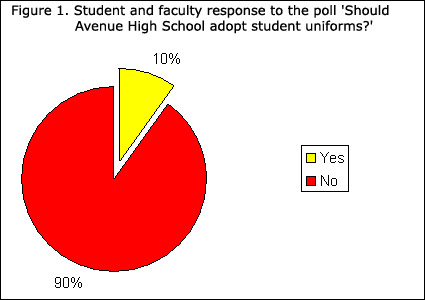
The circle graph/pie chart above clearly shows that 90% of all students and faculty members at Avenue High School do not want to have a uniform dress code and that only 10% of the school population would like to adopt school uniforms. This point is clearly emphasized by its visual separation from the rest of the pie.
Open the following Statistics Canada web page with different browsers, and press the Alt+Enter key when the focus is placed on the image to reveal the Long Description. Some browsers will respond and others will not.
Statistics Canada (new window)
Image Technique Resources
- DAISY Image Descriptions:
Coding Examples (new window)
and HTML Details (new window) - WAI Web Accessibility Tutorials: Images Concepts (new window)
- WebAIM: Alternative Text (new window)
- Longdesc: HTML5 Image Description Extension (new window)
- NNELS: Accessible COVID-19 Information with image descriptions (new window)
- YouTube: Screen Reader Image Description Navigation Demo (new window)
- YouTube: Screen Reader Image Data Table Navigation Demo (new window)
- YouTube: Screen Reader Image Sonification Navigation Demo (new window)
HTML List Container
Lists Content Relationships
Use list elements correctly. Individual List items can contain a variety of HTML elements, including Paragraph, Heading, Form elements, and other nested lists. There are three types of Lists: Unordered, Ordered, and Nested.
The Unordered List
Use unordered lists where there is no order of sequence or importance.
Unordered List Example
<ul>
  <li>Corn</li>
  <li>Tomatoes</li>
  <li>Beans</li>
  <li>Onions</li>
  <li>Garlic</li>
</ul>
Example Output
- Corn
- Tomatoes
- Beans
- Onions
- Garlic
The Ordered List
Use ordered lists to represent a progression or sequence.
Ordered List Example
<ol>
  <li>Cook beans for 45 minutes.</li>
  <li>Cut vegetables in small cubes.</li>
  <li>Sault onions and garlic.</li>
  <li>Deglaze using the tomatoes.</li>
  <li>Add corn and beans.</li>
</ol>
Example Output
- Cook beans for 45 minutes.
- Cut vegetables in small cubes.
- Sault onions and garlic.
- Deglaze using the tomatoes.
- Add corn and beans.
The Nested List Element
You can use Heading tags or ARIA Labels to identify multiple sublists.
Nested List Example
<ol>
  <li>Prepare ingredients
    <ul>
      <li>Cook beans for 45 minutes.</li>
      <li^>Cut vegetables in small cubes.</li>
    </ul>
  </li>
  <li>Sault onions and garlic.</li>
  <li>Deglaze using the tomatoes.</li>
  <li>Add corn and beans.</li>
</ol>
Example Output
- Prepare ingredients
- Cook beans for 45 minutes.
- Cut vegetables in small cubes.
- Sault onions and garlic.
- Deglaze using the tomatoes.
- Add corn and beans.
List Resources
- WAI/W3C: Content Structure Using Lists (new window)
- WCAG Technique H48: Using ol and ul for lists (new window)
Multiple Ways Of User Keyboard Navigation
Using the Table Of Content For Content Relationships
The Web Content Accessibility Guidelines WCAG 2.4.5: Multiple Ways (new window), offers suggestions and techniques for the user to gain an overview of the document content and organization, and it allows readers to go directly to a specific section of an on-line document.
- A table of contents provides links to sections of the same document.
- Those sections could be located on the same Web page or spread across multiple Web pages. But together, they make a complete idea.
- To better understand this, consider a hard copy book which has sections. Each section belongs to the book. There could be many books in a library. In this example, the
library
is the entire Web site.
Using Skip to Bypass Blocks Of Content
The Web Content Accessibility Guidelines
WCAG 2.4.1: Bypass Blocks (new window)
provide ways to help users navigate, find content, and determine where they are. The objective of this technique is to provide a mechanism to bypass blocks of material that are repeated on multiple Web pages by skipping directly to the content of interest. The first interactive item on a Web page should be a link to the beginning of the main content.
YouTube: Screen Reader Skip Link Navigation Demo (new window)
A brief screen reader demonstration in navigating web page Skip Links.
Using the Meaningful Sequence For Content Relationships
The order in which items appear on a screen may be different than the order they are found in the source document. Assistive technologies rely on the source code or other programmatically determined order to render the content in the correct sequence. Thus, it is important not to rely on CSS to visually position content in a specific sequence if this sequence results in a meaning that is different from the programmatically determined reading order.
The Web Content Accessibility Guidelines WCAG 1.3.2: Meaningful Sequence (new window) provides instructions for understanding and operating content that do not rely solely on sensory characteristics of components such as shape, color, size, visual location, orientation, or sound. It is important to preserve a meaningful sequence within the HTML structure.
WCAG Technique F1: Failure of Success Criterion 1.3.2 due to changing the meaning of content by positioning information with CSS (new window) This example demonstrates how CSS has been improperly used to create a set of columns. In addition, the text appears visually in the browser in a different order than in the markup. This describes the failure condition that results when CSS, rather than structural markup, is used to modify the visual layout of the content, and the modified layout changes the meaning of the content. In this example a class is defined for each object that is being positioned. When style sheets are applied, the text appears in two columns. Since appropriate structural elements have not been used, when style sheets are not applied, all of the text appears in one line in the source order for screen reader users.
HTML Paragraph Element
Paragraph Content Relationships
The visualization Success Criterion helps low vision users by letting them see text without distracting presentational features. It lets them configure text in ways that will be easier for them to see by letting them control the color and size of blocks of text. It also helps people with cognitive, language and learning disabilities perceive text and track their location within blocks of text.
- People with some visual or cognitive disabilities need to be able to select the color of text and the color of the background. They sometimes choose combinations that seem unintuitive to someone without that disability. Sometimes these combinations have very low contrast. Sometimes only very specific color combinations work for them. Control of color or other aspects of text presentation makes a huge difference to their comprehension.
- For people with some reading or vision disabilities, long lines of text can become a significant barrier. They have trouble keeping their place and following the flow of text. Having a narrow block of text makes it easier for them to continue on to the next line in a block.
- People with some cognitive disabilities find it difficult to track text where the lines are close together. Providing extra space between lines and paragraphs allows them to better track the next line and to recognize when they have reached the end of a paragraph.
- People with certain cognitive disabilities have problems reading text that is both left and right justified. The uneven spacing between words in fully justified text can cause “rivers of white” space to run down the page making reading difficult and in some cases impossible. Text justification can also cause words to be spaced closely together, so that it is difficult for them to locate word boundaries.
Paragraph Element Example
A paragraph is a coherent block of text, such as a group of related sentences that develop a single topic or a coherent part of a larger topic.
<p>Use the paragraph element <p> to mark up paragraphs of text, such as this one. The consistent styling of paragraphs improves text readability. It also gives users more control when customizing their view.</p>
How do you make a paragraph accessible?
- Use simple language and formatting, as appropriate for the context.
- Write in short, clear sentences and paragraphs.
- Avoid using unnecessarily complex words and phrases.
- Expand acronyms on first use. …
- Consider providing a glossary for terms readers may not know.
- Use list formatting as appropriate.
Paragraph Resources
- WCAG 1.4.8 Visual Presentation Success Criteria (new window)
- Techniques for using standard text formatting conventions for paragraphs (new window)
- Tips for Getting Started writing for Web Accessibility (new window)
HTML Quotes Element
The Quotes Element
- Identifying a quotation helps clarify that the content is attributed to another author.
- Quotes can be marked up as inline or as blocks of text.
- Assistive technologies can convey to users where a quote starts and ends, which can avoid misunderstandings.
- Blockquotes in Screen Readers, Adrian Roselli (new window)
Using the Blockquote Element
- Use the <blockquote> element for longer and more complex quotes.
- It can contain Paragraphs, Headings, and other text structure elements. Those should reflect the structure of the cited document.
- The <cite> element is used to refer to the source of the quote.
Quotes Example
<p>The following is an excerpt from <cite>The Story of my Life</cite> by Helen Keller</p>
<blockquote>
<p>Even in the days before my teacher came, I used to feel along the square stiff boxwood hedges, and, guided by the sense of smell, would find the first violets and lilies. There, too, after a fit of temper, I went to find comfort and to hide my hot face in the cool leaves and grass.</p>
</blockquote>
Example Output
The following is an excerpt from The Story of my Life by Helen Keller
Even in the days before my teacher came, I used to feel along the square stiff boxwood hedges, and, guided by the sense of smell, would find the first violets and lilies. There, too, after a fit of temper, I went to find comfort and to hide my hot face in the cool leaves and grass.
Using the Inline Quote Element
- For shorter quotes, that are usually embedded in another sentence, use the <q> element.
- Note that the <q> element generates quotation marks.
Quotes Example
<p>Helen Keller said, <q>Self-pity is our worst enemy and if we yield to it, we can never do anything good in the world.</q></p>
Example Output
Helen Keller said, Self-pity is our worst enemy and if we yield to it, we can never do anything good in the world.
HTML Select Element
The Select Element
When ever possible use a native HTML element or attribute with the semantics and behaviour already built in, instead of re-purposing an element and adding an ARIA role, state or property to make it accessible.
- Use <button> or <input type=submit>, and do not use <a role=button> And
- use <ul>, <ol> and <li>, and do not use <span role=list>, etc.
The Select Element Keyboard Actions
The HTML <select> element represents a control that presents a menu of options. The options within the menu are represented by <option> elements, which can be grouped by <optgroup> elements. Options can be pre-selected for the user.
- The Tab key moves focus into the field. A second Tab key selects the current item on the list, updates the field’s value, closes the dropdown list, and moves focus to the next focusable item in the tab order.
- The Alt Down Arrow or Spacebar keys open the dropdown list and moves focus to the selected option. If nothing is selected, then focus moves to the first option in the list. If a combobox is not editable, then the Spacebar may also be used to open the dropdown list.
- The Up and Down Arrow keys moves focus up and down the list. As focus moves inside the dropdown list, the edit field is updated.
- The Enter key selects the current item on the list, updates the value, highlights the selected item in the dropdown list, closes the dropdown list and returns focus to the field.
- The Escape key closes the dropdown list, returns focus to the field, and does not change the current selection.
- Typing a letter (printable character) key moves focus to the next instance of a visible node whose title begins with that printable letter.
HTML Select Example 1
<span tabindex="0" id="button" role="combobox" aria-expanded="false" aria-autocomplete="list" aria-owns="menu" aria-haspopup="true" aria-activedescendant="option-1" aria-labelledby="option-1" aria-disabled="false">Choose a country…</span>
<ul aria-hidden="true" aria-labelledby="button" id="menu" role="listbox" tabindex="0" aria-activedescendant="option-1" style="display: none;">
  <li id="option-1" role="option" tabindex="-1">Albania</li>
  <li id="option-2" role="option" tabindex="-1">Australia</li>
  <li id="option-3" role="option" tabindex="-1">Brazil</li>
  <li id="option-4" role="option" tabindex="-1">Canada</li>
  <li id="option-5" role="option" tabindex="-1">England</li>
  <li id="option-6" role="option" tabindex="-1">United States</li>
</ul>
HTML Select Example 2
To learn more review The MDN HTML Select Element (new window)
The Accessible Rich Internet Applications (ARIA)
The Accessible Rich Internet Applications (ARIA)
W3C/WAI: ARIA Authoring Practices Guide (new window)
The Accessible Rich Internet Applications (ARIA) markup was designed to insert information useful to assistive technologies into existing web browser HTML code. Adding ARIA support to a Web page does not change the presentation or behavior of that Web page to sighted users. The assistive technology user agent, like screen readers, gathers information from the ARIA markup and the browser’s application interface, and presents it in a meaningful way to the user.
Using ARIA, developers can make advanced web applications accessible and usable to people with disabilities. That is, ARIA provides a framework for adding attributes to identify features for user interaction, how they relate to each other, and their current state. That is, if you create a web page action that a user can click, or tap, or drag, or drop, or slide, or scroll… a user must also be able to navigate to that widget and perform an equivalent action using the keyboard.